> ## Documentation Index
> Fetch the complete documentation index at: https://docs.surveystream.idinsight.io/llms.txt
> Use this file to discover all available pages before exploring further.
# Emails Configuration
## Overview
The **Emails** module is used to configure and manage the [Emails](/emails) feature on SurveyStream.
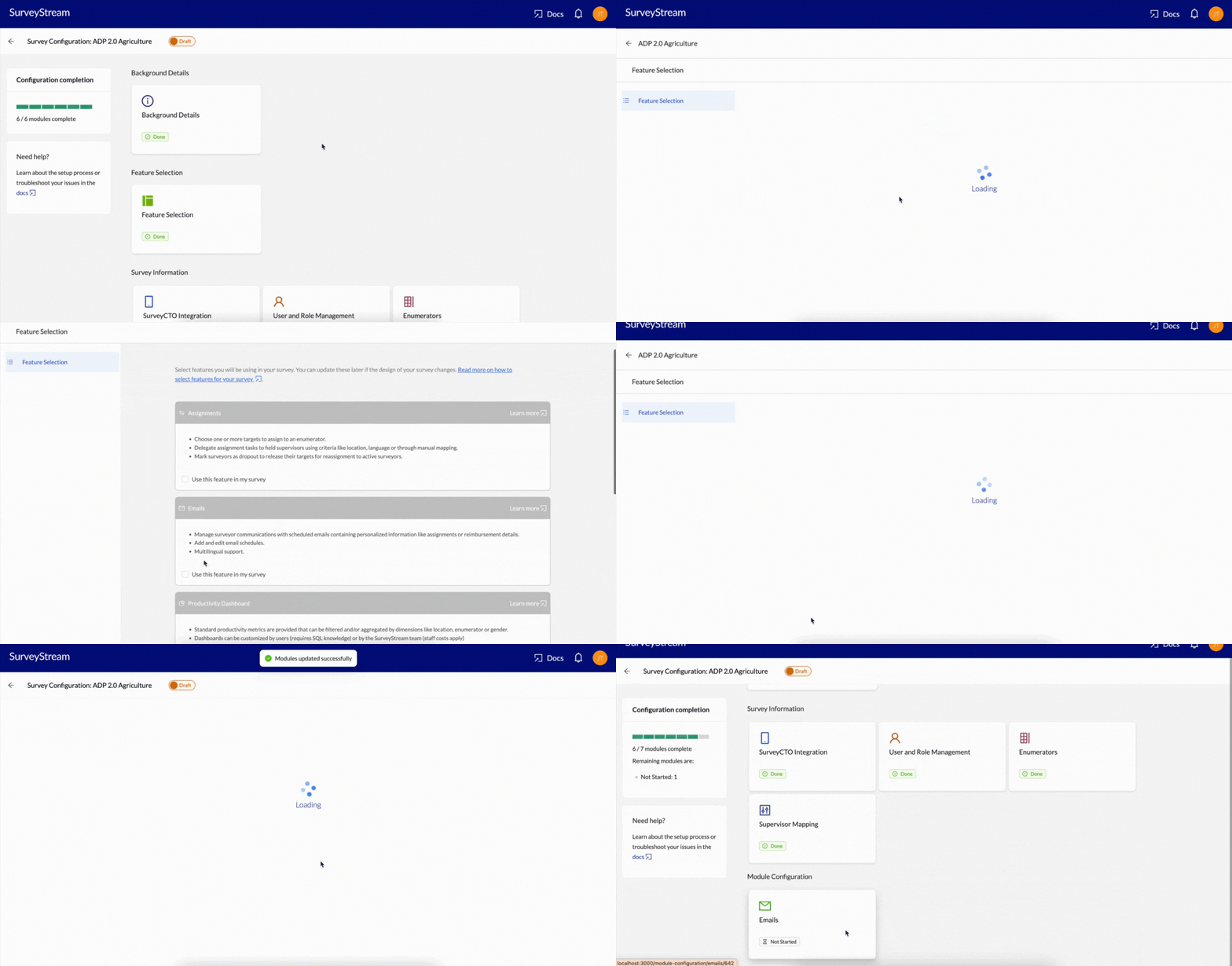
To enable the emails module, select `Emails` under `Feature Selection`.
 ## Prerequisites
Before configuring Emails, ensure the following are completed:
1. Configure the main form on SurveyStream
Complete the [SurveyCTO Integration](/surveycto_integration) step on SurveyStream. Each email configuration is linked to a specific main form and can contain data from the form if required.
2. Configure surveyors
Upload the list of surveyors in the [Enumerators](/enumerators) module in SurveyStream. Verify that the enumerator email addresses are correct.
3. (Optional) Map surveyors to supervisors
The immediate supervisor of a surveyor is CC'd on emails sent to the surveyor. For this to work, confirm that each surveyor is mapped to a supervisor in the [Supervisor Mapping](/supervisor_mapping) module. Also, verify that the supervisor email addresses are correct.
If the surveyor is not mapped to a supervisor, the email will still be sent to the surveyor but not CC'd to any supervisor.
4. (Optional) Finish configuring assignments on SurveyStream.
If you'd like to send emails with assignment information, ensure that the assignments feature is configured. Check out [assignments configuration](/assignments_configuration) for more details.
5. (Optional) Ensure data needed for emails is ready
The emails can have data from a Google Sheet or from a SurveyStream table:
1. If the source of data for the email is a Google Sheet, prepare the Google Sheet with the required data and grant [dod-sheets@data-on-demand-225320.iam.gserviceaccount.com](mailto:dod-sheets@data-on-demand-225320.iam.gserviceaccount.com) read access to the sheet.
The Google Sheet must have a column named `enumerator_id` matching the
enumerator IDs in the enumerators dataset. This column is used to filter
the data for each surveyor.
2. If the source of data for the email is a SurveyStream table, kindly reach out to the SurveyStream team to set up the tables.
A table containing assignment data with all fields available for the
[Assignments](/link_to_all_available_columns_assignments) module is
provided in emails by default. The assignments table can also be
configured to include fields from the latest SurveyCTO submission for a
target using the `Edit column configuration` feature in Assignments.
## Configuration
### Key concepts
### **Email configuration**
An email configuration is a set of settings that define a specific type of email to be sent to surveyors. You can create multiple email configurations for the same form, and each configuration has its own templates - one per language.
For example, you can create an email configuration for sending assignments to surveyors and another configuration for sending data quality reports.
#### **Email schedule**
An email schedule defines when and how often emails should be sent to surveyors. Each email configuration can have multiple schedules, each with its own set of dates and times.
For example, you might create a schedule to send daily emails at 9 AM and another schedule to send weekly emails on Sundays at 7 PM.
#### **Email delivery report**
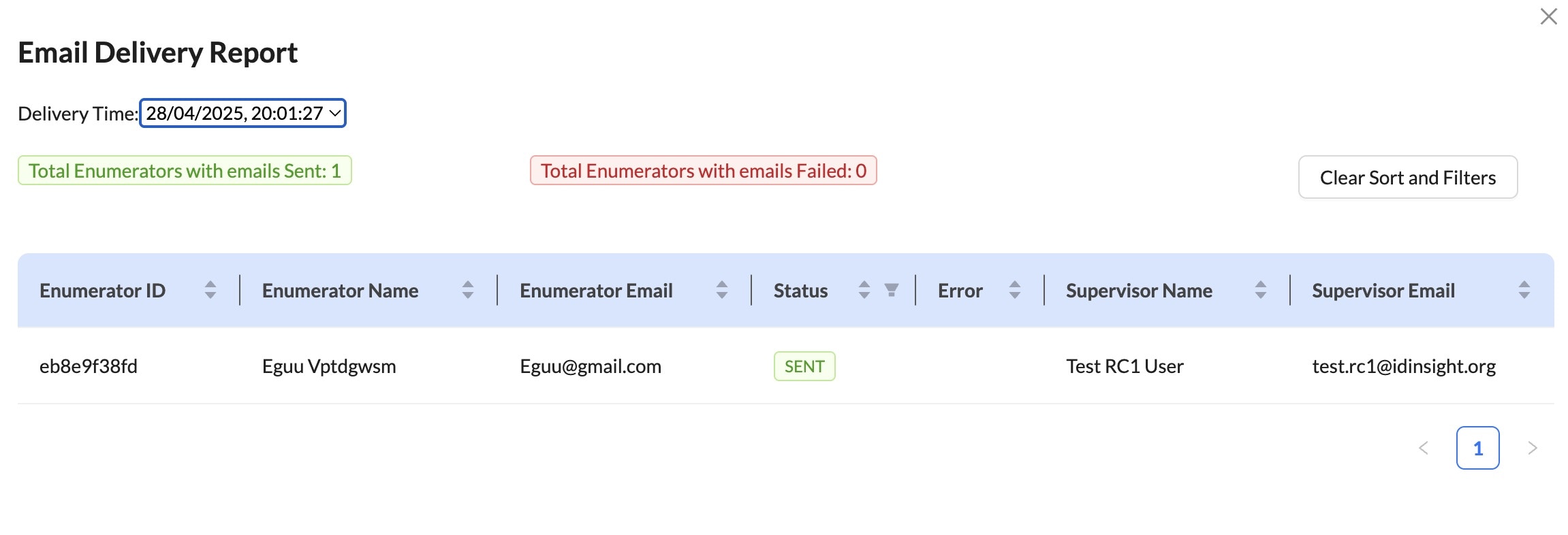
After each scheduled email is sent, a delivery report is generated. This report shows the status of emails sent to surveyors.
1. You can view the report in the Emails module by clicking on the `View Delivery Report` button next to the schedule name on the Emails home page:
## Prerequisites
Before configuring Emails, ensure the following are completed:
1. Configure the main form on SurveyStream
Complete the [SurveyCTO Integration](/surveycto_integration) step on SurveyStream. Each email configuration is linked to a specific main form and can contain data from the form if required.
2. Configure surveyors
Upload the list of surveyors in the [Enumerators](/enumerators) module in SurveyStream. Verify that the enumerator email addresses are correct.
3. (Optional) Map surveyors to supervisors
The immediate supervisor of a surveyor is CC'd on emails sent to the surveyor. For this to work, confirm that each surveyor is mapped to a supervisor in the [Supervisor Mapping](/supervisor_mapping) module. Also, verify that the supervisor email addresses are correct.
If the surveyor is not mapped to a supervisor, the email will still be sent to the surveyor but not CC'd to any supervisor.
4. (Optional) Finish configuring assignments on SurveyStream.
If you'd like to send emails with assignment information, ensure that the assignments feature is configured. Check out [assignments configuration](/assignments_configuration) for more details.
5. (Optional) Ensure data needed for emails is ready
The emails can have data from a Google Sheet or from a SurveyStream table:
1. If the source of data for the email is a Google Sheet, prepare the Google Sheet with the required data and grant [dod-sheets@data-on-demand-225320.iam.gserviceaccount.com](mailto:dod-sheets@data-on-demand-225320.iam.gserviceaccount.com) read access to the sheet.
The Google Sheet must have a column named `enumerator_id` matching the
enumerator IDs in the enumerators dataset. This column is used to filter
the data for each surveyor.
2. If the source of data for the email is a SurveyStream table, kindly reach out to the SurveyStream team to set up the tables.
A table containing assignment data with all fields available for the
[Assignments](/link_to_all_available_columns_assignments) module is
provided in emails by default. The assignments table can also be
configured to include fields from the latest SurveyCTO submission for a
target using the `Edit column configuration` feature in Assignments.
## Configuration
### Key concepts
### **Email configuration**
An email configuration is a set of settings that define a specific type of email to be sent to surveyors. You can create multiple email configurations for the same form, and each configuration has its own templates - one per language.
For example, you can create an email configuration for sending assignments to surveyors and another configuration for sending data quality reports.
#### **Email schedule**
An email schedule defines when and how often emails should be sent to surveyors. Each email configuration can have multiple schedules, each with its own set of dates and times.
For example, you might create a schedule to send daily emails at 9 AM and another schedule to send weekly emails on Sundays at 7 PM.
#### **Email delivery report**
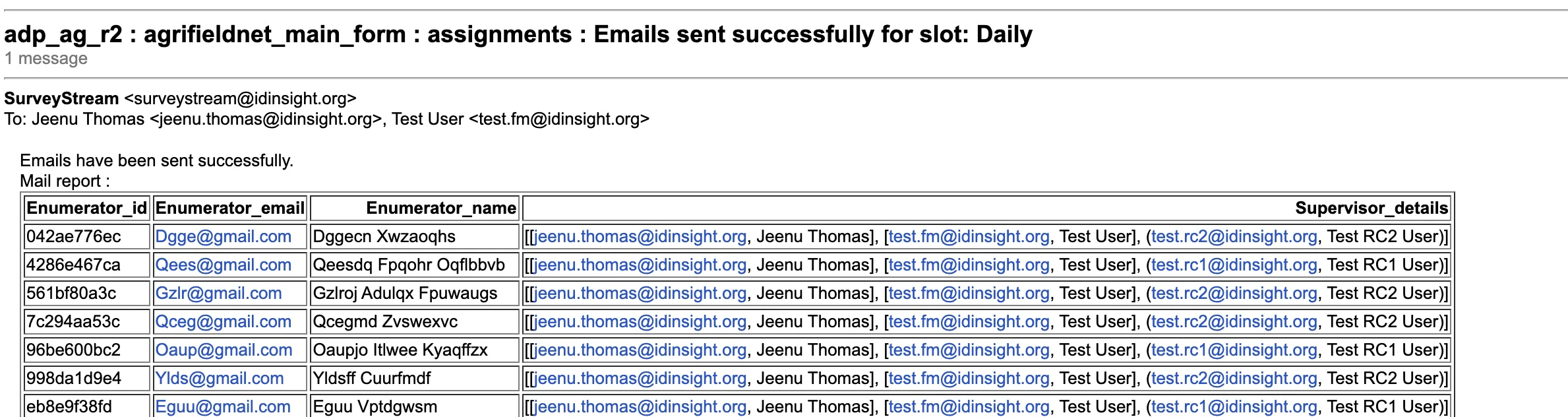
After each scheduled email is sent, a delivery report is generated. This report shows the status of emails sent to surveyors.
1. You can view the report in the Emails module by clicking on the `View Delivery Report` button next to the schedule name on the Emails home page:
 2. The report is also sent to the users selected in the `Team member(s) to receive email delivery report` field during the email configuration step:
 ### Add an email configuration
Click on `Configure Emails` button to add a new email configuration.
#### Step 1. Email Config
1. Provide the following details:
### Add an email configuration
Click on `Configure Emails` button to add a new email configuration.
#### Step 1. Email Config
1. Provide the following details:
 | Input | Description |
| ------------------------------------------------------------------------- | ----------------------------------------------------------------------------------------------------------------------------------------------------------------------------------------------------------------------------------------------------- |
| SCTO form ID | Select the SurveyCTO main form ID from the dropdown. |
| Configuration Name | Unique identifier for the email configuration. E.g. `assignments`, `data quality report` etc. This value is used throughout the web app to identify the configuration. It can also be included in the email subject/content, if required. |
| Team member(s) to receive [email delivery report](#email-delivery-report) | Select required users from the list of users added in [User and Role Management](/user_management) module. An email delivery report with the list of surveyors who successfully received the email is sent to these users after every scheduled slot. |
| Team member(s) to be copied on the emails sent | (Optional) Select required users from the list of users added in [User and Role Management](/user_management) module. These users will be CC'd on every email sent to the surveyors. |
| Source of data for the email | Select the source of data for the emails. This can be either a Google Sheet or SurveyStream Data. |
| Send PDF attachment | Whether the email data should also be sent as a PDF attachment. This is helpful for e.g, when data collection is happening in a location with limited internet connectivity and surveyors need to download the assignment details before heading out. |
If you select an existing configuration name in this step, the system will load its existing details for editing.
2. If the source of data for the email is a `Google Sheet`, provide the following additional inputs:
| Input | Description |
| ------------------------------------------------------------------------- | ----------------------------------------------------------------------------------------------------------------------------------------------------------------------------------------------------------------------------------------------------- |
| SCTO form ID | Select the SurveyCTO main form ID from the dropdown. |
| Configuration Name | Unique identifier for the email configuration. E.g. `assignments`, `data quality report` etc. This value is used throughout the web app to identify the configuration. It can also be included in the email subject/content, if required. |
| Team member(s) to receive [email delivery report](#email-delivery-report) | Select required users from the list of users added in [User and Role Management](/user_management) module. An email delivery report with the list of surveyors who successfully received the email is sent to these users after every scheduled slot. |
| Team member(s) to be copied on the emails sent | (Optional) Select required users from the list of users added in [User and Role Management](/user_management) module. These users will be CC'd on every email sent to the surveyors. |
| Source of data for the email | Select the source of data for the emails. This can be either a Google Sheet or SurveyStream Data. |
| Send PDF attachment | Whether the email data should also be sent as a PDF attachment. This is helpful for e.g, when data collection is happening in a location with limited internet connectivity and surveyors need to download the assignment details before heading out. |
If you select an existing configuration name in this step, the system will load its existing details for editing.
2. If the source of data for the email is a `Google Sheet`, provide the following additional inputs:
 | Input | Description |
| -------------------- | -------------------------------------------------------- |
| Link to Google Sheet | The URL for the Google Sheet. |
| Google Sheet Tab | The name of the tab on Google Sheet containing the data. |
| Header Row | The row number of the row containing column names. |
Click on `Load Google Sheet headers` to test the connection and load column names from the sheet. These column names will be required in the next step when configuring the content of the email.
When email data is from a Google Sheet, the project team is responsible for ensuring that the data on the sheet is up to date. SurveyStream will simply read the data from the sheet as is and send it in the email.
3. If `Send PDF attachment` option is selected, provide the following additional inputs:
| Input | Description |
| -------------------- | -------------------------------------------------------- |
| Link to Google Sheet | The URL for the Google Sheet. |
| Google Sheet Tab | The name of the tab on Google Sheet containing the data. |
| Header Row | The row number of the row containing column names. |
Click on `Load Google Sheet headers` to test the connection and load column names from the sheet. These column names will be required in the next step when configuring the content of the email.
When email data is from a Google Sheet, the project team is responsible for ensuring that the data on the sheet is up to date. SurveyStream will simply read the data from the sheet as is and send it in the email.
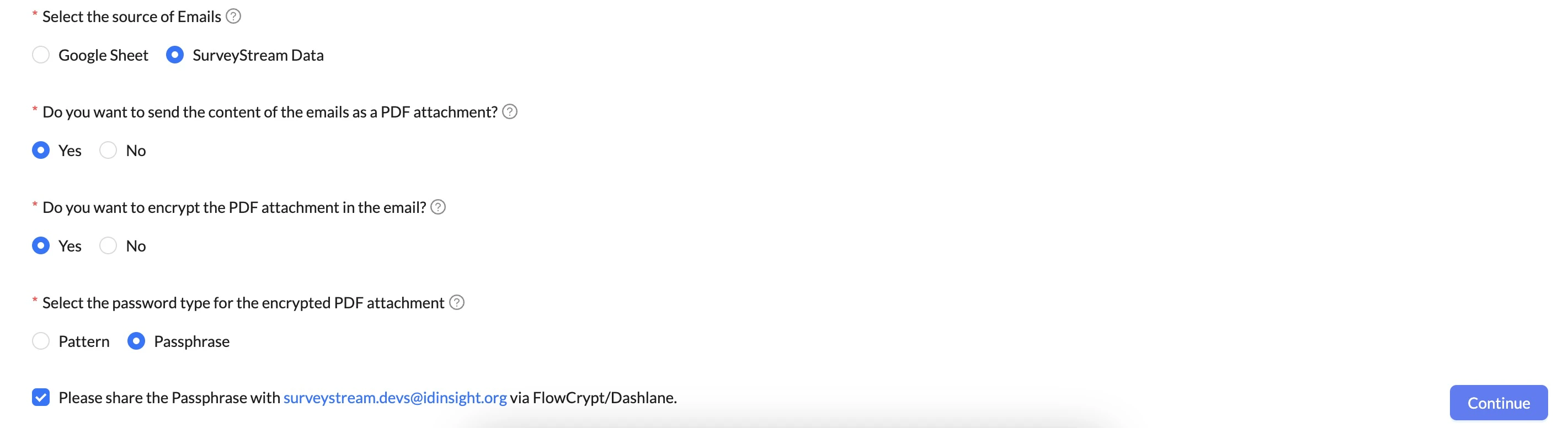
3. If `Send PDF attachment` option is selected, provide the following additional inputs:
 | Input | Description |
| ---------------------------- | ------------------------------------------------------------------------------------------------------------------------------------------------------------------------------------------------------------------------------------------------------------------------------------------------------------------------------------------------- |
| Encrypt the PDF attachment | Whether or not to encrypt the PDF attachment. If the attachment has PII data, encryption is recommended. |
| Password type for encryption | Type of password to be used. Two options are provided: 1. A fixed pattern `enum_id@enum_name` which is different for each enumerator and 2. a constant passphrase decided by the project team. If passphrase is selected, kindly share it with [surveystream.devs@idinsight.org](mailto:surveystream.devs@idinsight.org) via Flowcrypt/ Nordpass. |
Click on `Continue` to proceed to the next step.
#### Step 2. Email Templates
In this step, configure the content of the email:
| Input | Description |
| ---------------------------- | ------------------------------------------------------------------------------------------------------------------------------------------------------------------------------------------------------------------------------------------------------------------------------------------------------------------------------------------------- |
| Encrypt the PDF attachment | Whether or not to encrypt the PDF attachment. If the attachment has PII data, encryption is recommended. |
| Password type for encryption | Type of password to be used. Two options are provided: 1. A fixed pattern `enum_id@enum_name` which is different for each enumerator and 2. a constant passphrase decided by the project team. If passphrase is selected, kindly share it with [surveystream.devs@idinsight.org](mailto:surveystream.devs@idinsight.org) via Flowcrypt/ Nordpass. |
Click on `Continue` to proceed to the next step.
#### Step 2. Email Templates
In this step, configure the content of the email:
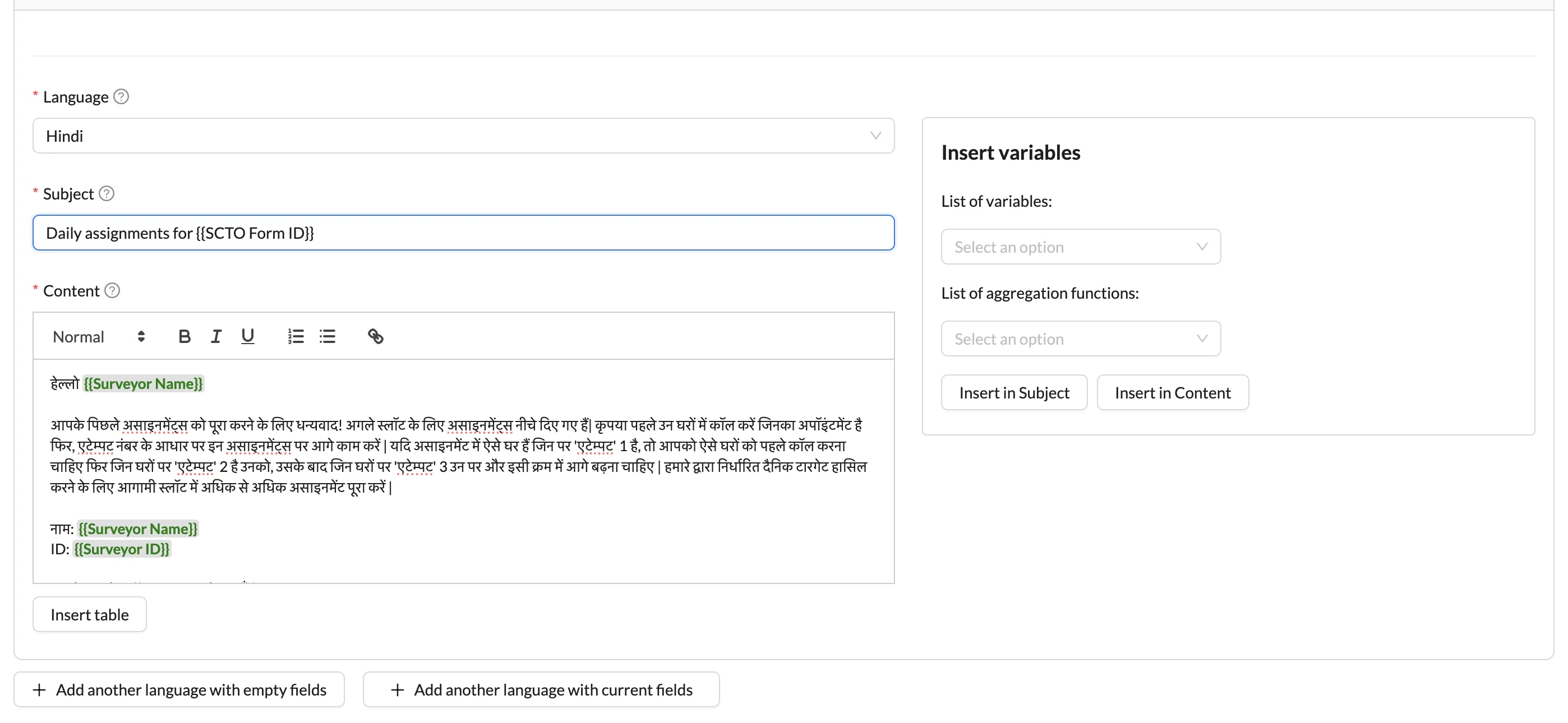 | Input | Description |
| -------- | ----------------------------------------------------------------------------------------------------------------------------------- |
| Language | Select language from a dropdown consisting of all languages in the enumerators data uploaded in [Enumerators](/enumerators) module. |
| Subject | Subject of the email like *"ADP 2.0 Agriculture Daily Assignments"* |
| Content | The content of the email. |
The email subject and content can include variables like surveyor name, surveyor id as well as tables with data from a Google Sheet or from a SurveyStream table (as per selection in the previous step).
* **Insert variable**
Variables are added to the email subject and content using the options on the right side of the screen. Select the variable from the dropdown and click on `Insert in Subject` or `Insert in Content` button to add it to the email subject or content respectively.
The variables dropdown includes:
* Survey Name: The name of the survey.
* SCTO Form ID: The ID of the main form selected in the previous step.
* Assignment Date: The date of the assignment. This is the date when the email is sent.
* Config Name: The name of the email configuration.
* Schedule Name: The name of the schedule.
* Surveyor fields: This includes any field included in the enumerators dataset uploaded in [Enumerators](/enumerators) module like Surveyor ID, Surveyor Name, Surveyor Email as well as custom fields.
* Location fields: This includes ID and name of the location corresponding to the surveyor. Since surveyors are assigned to the prime geo level, only the prime geo level and location levels above it are available in the dropdown.
You can also apply functions like UPPER, SUM, COUNT etc. on these variables using the `List of aggregate functions` dropdown. For example, to include the count of surveyors in the email, use COUNT function with the Surveyor ID variable.
The variable when inserted in the email body show up as `{{variable_name}}` but when the email is sent, they are replaced with the actual values.
Also, typing in a variable name with `{{` and `}}` is not allowed. You need to select the variable from the dropdown and add them using the `Insert in Subject` or `Insert in Content` buttons.
* **Insert table**
The `Insert table` button allows you to insert a table with data from the Google Sheet loaded in the previous step or from a SurveyStream table.
The following configuration options are available when adding a table:
1. Select columns to be included in the email.
2. Change the name of the columns in the email by editing the `Display Name` field.
3. Apply filters to filter data included in the email. For example, to send only assignments with fewer than 3 attempts, add a filter where `Total Attempts is smaller than 3`.
4. Sort the data in the table by any column. For example, if you want to sort the assignments by ascending order of the number of attempts, you can select the `Total Attempts` column and select the `Ascending` option.
5. Change the order of the columns in the email by dragging and dropping them in the required order. This is done on the main screen after the table is inserted in the email body.
Also, since the email is sent to surveyors in their language, if there are more than one distinct language in the enumerators dataset, you need to configure the email template for each language. You can use the `Add another language` buttons in the bottom to add more languages.
Use `Add another language with current fields` option to copy the current email template as a starting point for the new language configuration. This is useful if the email content is similar across languages.
#### Step 3. Email Schedules
As the last step in the configuration, configure the schedule for sending the emails:
| Input | Description |
| -------- | ----------------------------------------------------------------------------------------------------------------------------------- |
| Language | Select language from a dropdown consisting of all languages in the enumerators data uploaded in [Enumerators](/enumerators) module. |
| Subject | Subject of the email like *"ADP 2.0 Agriculture Daily Assignments"* |
| Content | The content of the email. |
The email subject and content can include variables like surveyor name, surveyor id as well as tables with data from a Google Sheet or from a SurveyStream table (as per selection in the previous step).
* **Insert variable**
Variables are added to the email subject and content using the options on the right side of the screen. Select the variable from the dropdown and click on `Insert in Subject` or `Insert in Content` button to add it to the email subject or content respectively.
The variables dropdown includes:
* Survey Name: The name of the survey.
* SCTO Form ID: The ID of the main form selected in the previous step.
* Assignment Date: The date of the assignment. This is the date when the email is sent.
* Config Name: The name of the email configuration.
* Schedule Name: The name of the schedule.
* Surveyor fields: This includes any field included in the enumerators dataset uploaded in [Enumerators](/enumerators) module like Surveyor ID, Surveyor Name, Surveyor Email as well as custom fields.
* Location fields: This includes ID and name of the location corresponding to the surveyor. Since surveyors are assigned to the prime geo level, only the prime geo level and location levels above it are available in the dropdown.
You can also apply functions like UPPER, SUM, COUNT etc. on these variables using the `List of aggregate functions` dropdown. For example, to include the count of surveyors in the email, use COUNT function with the Surveyor ID variable.
The variable when inserted in the email body show up as `{{variable_name}}` but when the email is sent, they are replaced with the actual values.
Also, typing in a variable name with `{{` and `}}` is not allowed. You need to select the variable from the dropdown and add them using the `Insert in Subject` or `Insert in Content` buttons.
* **Insert table**
The `Insert table` button allows you to insert a table with data from the Google Sheet loaded in the previous step or from a SurveyStream table.
The following configuration options are available when adding a table:
1. Select columns to be included in the email.
2. Change the name of the columns in the email by editing the `Display Name` field.
3. Apply filters to filter data included in the email. For example, to send only assignments with fewer than 3 attempts, add a filter where `Total Attempts is smaller than 3`.
4. Sort the data in the table by any column. For example, if you want to sort the assignments by ascending order of the number of attempts, you can select the `Total Attempts` column and select the `Ascending` option.
5. Change the order of the columns in the email by dragging and dropping them in the required order. This is done on the main screen after the table is inserted in the email body.
Also, since the email is sent to surveyors in their language, if there are more than one distinct language in the enumerators dataset, you need to configure the email template for each language. You can use the `Add another language` buttons in the bottom to add more languages.
Use `Add another language with current fields` option to copy the current email template as a starting point for the new language configuration. This is useful if the email content is similar across languages.
#### Step 3. Email Schedules
As the last step in the configuration, configure the schedule for sending the emails:
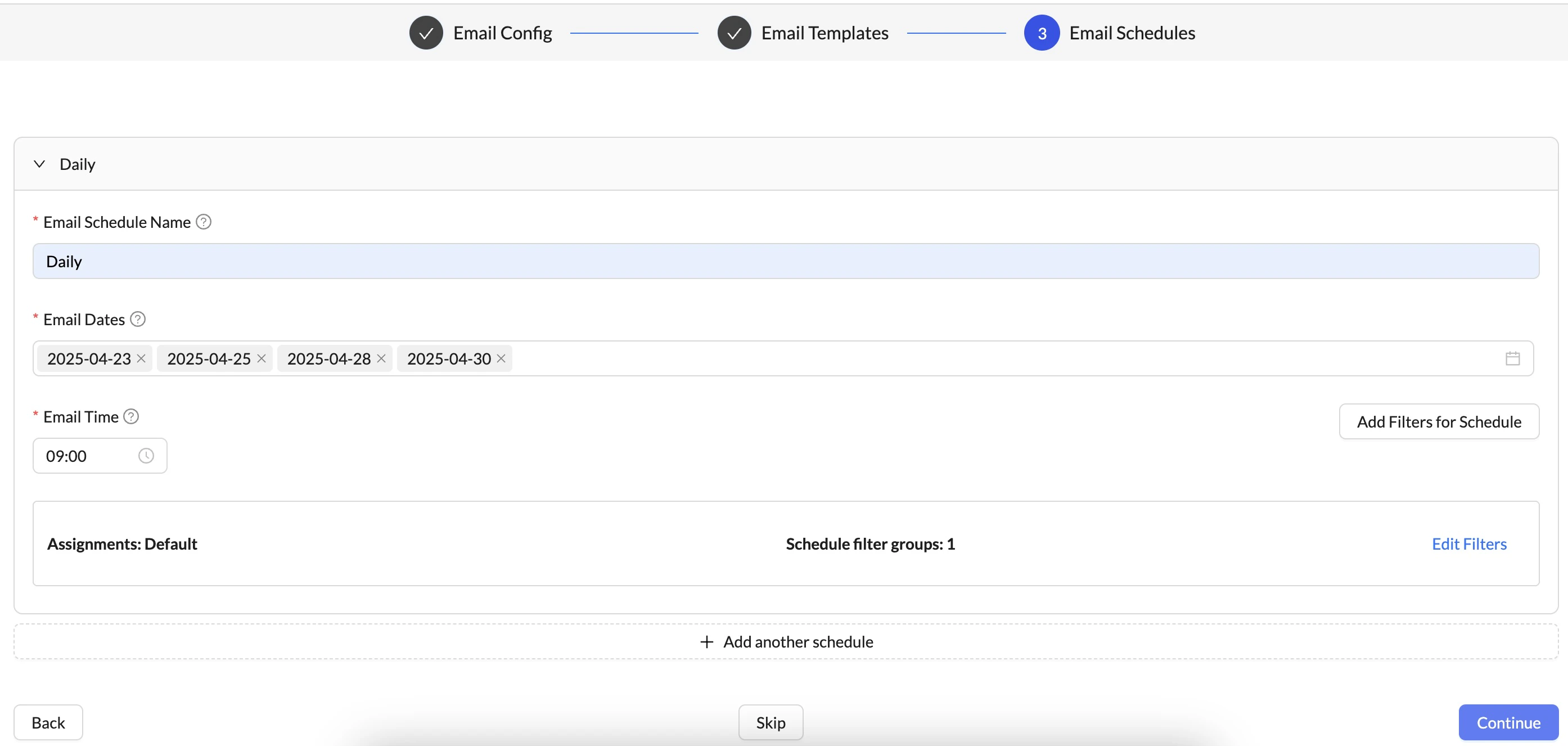 | Input | Description |
| ------------- | ----------------------------------------------------------------------------------------------------------------------------------------- |
| Schedule Name | Unique identifier for the schedule. E.g. `daily`, `weekly` etc. |
| Dates | The list of dates on which the email should be sent. |
| Time | The time at which the email should be sent. This is in the survey timezone. Email times are restricted to 0th and 30th minute of an hour. |
You can use the `Add filters for schedule` button to add filters on the data to be sent in the email which are specific to the schedule. For example, to send only targets with 0 attempts on a Monday of each week, you can create a schedule for Mondays and add a filter for Total Attempts = 0.
### Other actions on emails home page
| Input | Description |
| ------------- | ----------------------------------------------------------------------------------------------------------------------------------------- |
| Schedule Name | Unique identifier for the schedule. E.g. `daily`, `weekly` etc. |
| Dates | The list of dates on which the email should be sent. |
| Time | The time at which the email should be sent. This is in the survey timezone. Email times are restricted to 0th and 30th minute of an hour. |
You can use the `Add filters for schedule` button to add filters on the data to be sent in the email which are specific to the schedule. For example, to send only targets with 0 attempts on a Monday of each week, you can create a schedule for Mondays and add a filter for Total Attempts = 0.
### Other actions on emails home page
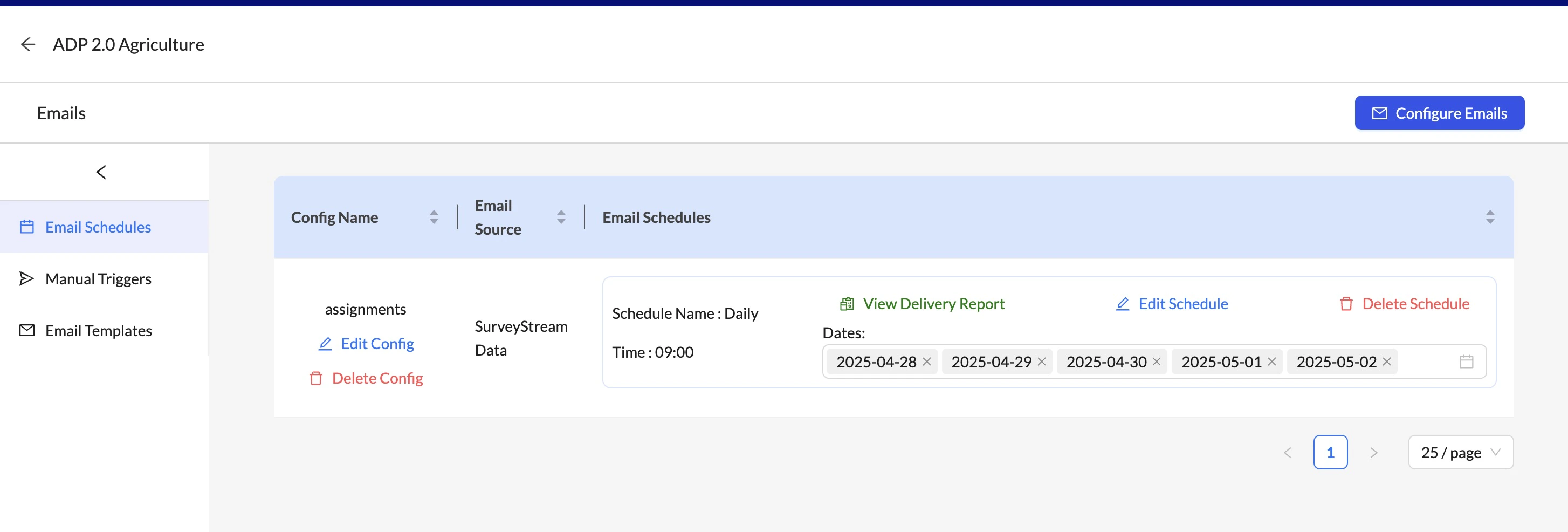 The Emails homepage lists all created configurations. You can perform the following actions on the email configurations:
1. **Edit Config**: To edit the config details (details filled in [Step 1](#step-1-email-config)) for an existing email configuration, click on the `Edit Config` button next to the configuration name. This will open a drawer with the config details to edit.
2. **Delete config**: To delete an email configuration, click on the `Delete Config` button next to the configuration name.
Deleting an email configuration will delete all the schedules and templates associated with it.
Deleted configurations cannot be restored.
3. **Edit schedule**: To edit the schedule details (details filled in [Step 3](#step-3-email-schedules)) like to add/remove dates or to update the email time, click on the `Edit Schedule` button next to the schedule name.
This will open a drawer with the schedule details to edit. You can also update/add filters for the schedule in this step.
Editing the schedule will not affect the emails already sent.
4. **Delete schedule**: To delete a schedule, click on the `Delete Schedule` button on the Emails home page.
Deleting a schedule will not affect the emails already sent.
Also, the schedule cannot be restored once deleted.
5. **View delivery report**: To view the delivery report for a particular schedule, click on the `View Delivery Report` button next to the schedule name. This will open a popup with the status of emails sent. This can be used to check if a specific surveyor received the email or not and error messages, if any. In case of failures, kindly reach out to the SurveyStream team for assistance if the error message is not clear.
### Edit email templates
To edit the email templates for an existing email configuration, navigate to the `Email Templates` tab on the Emails home page. It shows a table with a list of templates created for each language and each configuration in [Step 2](/#step-2-email-templates).
The Emails homepage lists all created configurations. You can perform the following actions on the email configurations:
1. **Edit Config**: To edit the config details (details filled in [Step 1](#step-1-email-config)) for an existing email configuration, click on the `Edit Config` button next to the configuration name. This will open a drawer with the config details to edit.
2. **Delete config**: To delete an email configuration, click on the `Delete Config` button next to the configuration name.
Deleting an email configuration will delete all the schedules and templates associated with it.
Deleted configurations cannot be restored.
3. **Edit schedule**: To edit the schedule details (details filled in [Step 3](#step-3-email-schedules)) like to add/remove dates or to update the email time, click on the `Edit Schedule` button next to the schedule name.
This will open a drawer with the schedule details to edit. You can also update/add filters for the schedule in this step.
Editing the schedule will not affect the emails already sent.
4. **Delete schedule**: To delete a schedule, click on the `Delete Schedule` button on the Emails home page.
Deleting a schedule will not affect the emails already sent.
Also, the schedule cannot be restored once deleted.
5. **View delivery report**: To view the delivery report for a particular schedule, click on the `View Delivery Report` button next to the schedule name. This will open a popup with the status of emails sent. This can be used to check if a specific surveyor received the email or not and error messages, if any. In case of failures, kindly reach out to the SurveyStream team for assistance if the error message is not clear.
### Edit email templates
To edit the email templates for an existing email configuration, navigate to the `Email Templates` tab on the Emails home page. It shows a table with a list of templates created for each language and each configuration in [Step 2](/#step-2-email-templates).
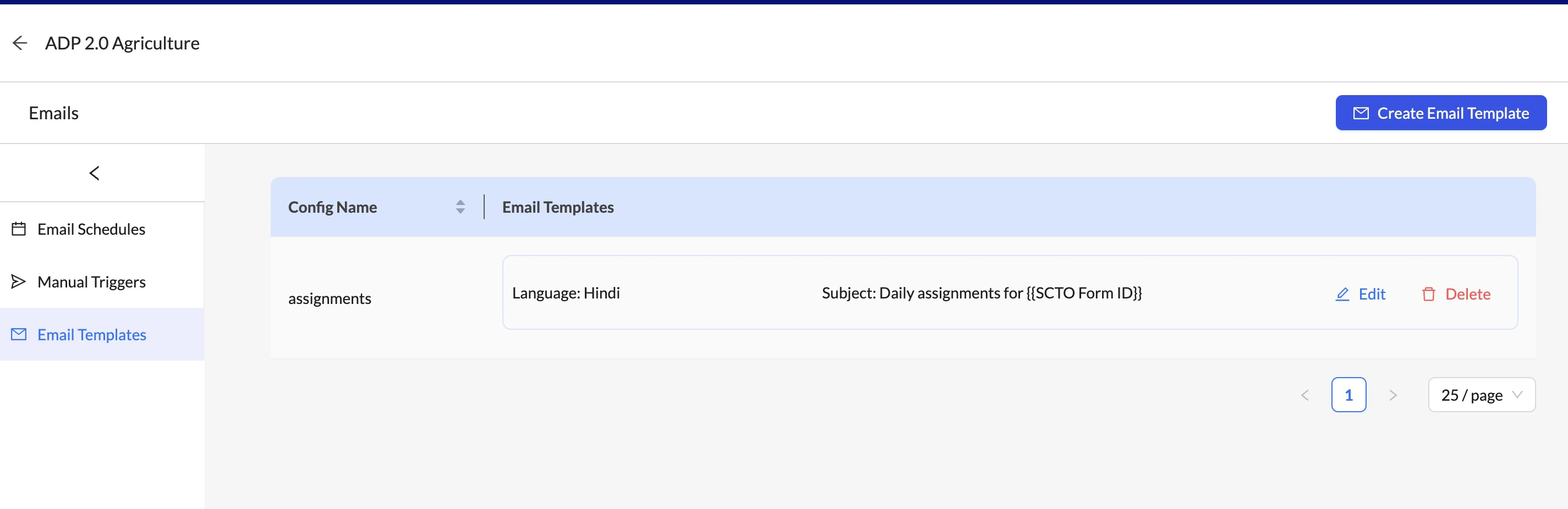 To edit the content of a template, click on the `Edit` button next to the template you want to edit. This will open a drawer with all the details of the template - subject, body and options to add variables and tables.
You can also delete a template by clicking on the `Delete` button.
Deleting a template will not affect the emails already sent.
Also, the template cannot be restored once deleted.
### Manual Triggers
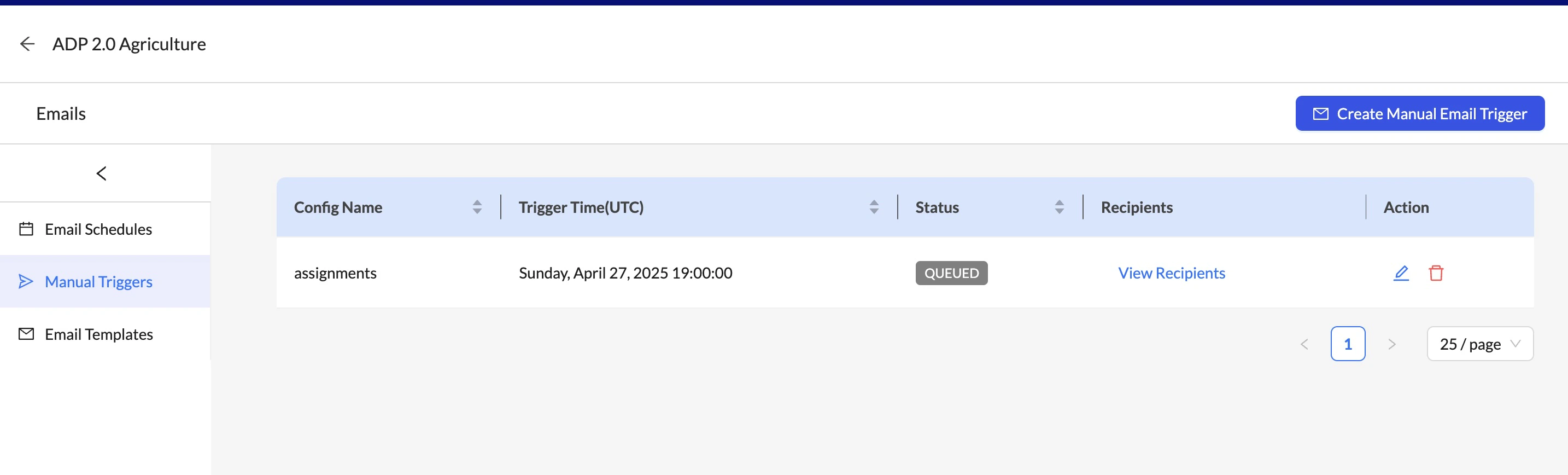
If you would like to send emails manually to a specific surveyor or a select group of surveyors at a specific date and time outside the regular schedule, you can do so using the `Manual Triggers` tab on the Emails home page.
It shows a table with the list of all manual triggers created. To create a new manual trigger, click on the `Create Manual Email Trigger` button. This will open a popup where you can provide the following details:
To edit the content of a template, click on the `Edit` button next to the template you want to edit. This will open a drawer with all the details of the template - subject, body and options to add variables and tables.
You can also delete a template by clicking on the `Delete` button.
Deleting a template will not affect the emails already sent.
Also, the template cannot be restored once deleted.
### Manual Triggers
If you would like to send emails manually to a specific surveyor or a select group of surveyors at a specific date and time outside the regular schedule, you can do so using the `Manual Triggers` tab on the Emails home page.
It shows a table with the list of all manual triggers created. To create a new manual trigger, click on the `Create Manual Email Trigger` button. This will open a popup where you can provide the following details:
 | Input | Description |
| ------------ | --------------------------------------------------------------------------- |
| Email Config | Select the email configuration to be used for the manual trigger. |
| Date | The date on which the email should be sent. |
| Time | The time at which the email should be sent. This is in the survey timezone. |
| Recipients | The list of surveyors to whom the email should be sent from a dropdown. |
| Input | Description |
| ------------ | --------------------------------------------------------------------------- |
| Email Config | Select the email configuration to be used for the manual trigger. |
| Date | The date on which the email should be sent. |
| Time | The time at which the email should be sent. This is in the survey timezone. |
| Recipients | The list of surveyors to whom the email should be sent from a dropdown. |